November 15, 2026 · 9 min read
CabinetWizard Is Standalone Desktop Software, Not a Plug-in
CabinetWizard isn't a plug-in running inside another program; it's a Windows program you install on its own. Installation, licensing, offline use and crash recovery explained.

One of the first questions we get is: "Which program do I have to install before I can use this?" The short answer: none. CabinetWizard isn't a plug-in that runs inside another drawing program; it's desktop software you install on your Windows PC on its own. Click the icon, it opens, you get to work. In this post we walk through what that means in a cabinet shop, step by step, from installation and licensing to crash recovery and a second monitor.
What's the difference between a plug-in and a desktop program?
A plug-in is an add-on that lives inside another program. For it to work, that host program has to be installed, licensed and on a version the plug-in supports. When the host updates, the plug-in can break, and the host's limits become the plug-in's limits. In a shop that means two licences, two sets of updates and two things to learn.
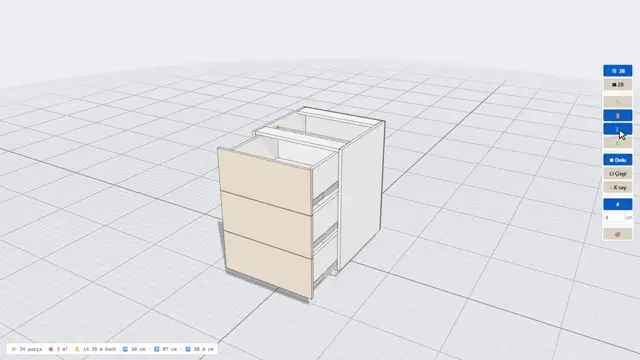
CabinetWizard doesn't have that chain. It runs on its own and doesn't need anything installed next to it. Design, the 3D view, rendering, quoting and production output are all in one window. As we put it on the site: it isn't tied to any other program; it runs on Windows on its own.
That was a deliberate choice. As we tell in our story, the idea waited for years, because building a stand-alone program that shows the cabinet in 3D and outputs straight to cutting and CNC wasn't easy. Today CabinetWizard is a workflow that goes from design to cut list, from worktop sheet to CNC, in a single program.
What's under the hood? The technical part, kept simple
A quick summary for those who like the technical detail. The program window is built on a desktop framework called Tauri, and the interface you see is drawn by WebView2, the web rendering component of Windows. That doesn't make the program a website: everything runs on your own computer, in the program's own window.
The heavy lifting is done in a core written in Rust, a fast programming language: the NC plan and G-code, sheet layouts for both panel saw and CNC router, the quote, the cut list CSV, the hole table, DXF and per-part DXF all come out of that core. The engine that breaks a cabinet down into its parts is embedded in the program too. For you the result is simple: after installation, everything the program needs is on your PC.
This matters for parametric cabinet design. Parametric means every part of the cabinet is tied to a dimension; change the width and the bottom, shelves and door rebuild. That calculation happens on your machine every time you change something, without a round trip to a server.
How does installation work?
After you buy, the program is delivered to you over WhatsApp. The installer is a classic setup wizard built for 64-bit Windows: run the file and follow the steps. There's a disclaimer page during setup, and you can't click Next without accepting it. When setup finishes, you open the program from its desktop icon.
The free demo has its own installer. The demo runs for 5 days, can be used once per computer, and shows the remaining time in the bottom-right corner. In the demo, design, 3D, rendering, project saving and GLB are open; production outputs such as NC, cut list, cutting plan, DXF, quote, labels and assembly sheets are in the full version.
How does licensing work, and do I need internet?
The full version is activated with a licence key. You need internet once, during activation; after that the program works offline. A basement workshop, a job site with weak signal, a customer's house: it doesn't matter, you keep designing and printing outputs.
One licence is valid for one PC. A second licence for another computer in your shop is 25% off. If you change computers, message us on WhatsApp about transferring the licence.
The demo, on the other hand, needs internet while it runs, because we track the trial period against the server clock. For the current price and launch terms, see the price section: it's a one-time payment with no subscription, made by bank transfer.
If the program crashes, do I lose my work?
No program is completely immune to a power cut or an unexpected shutdown, which is why we built crash recovery into CabinetWizard. Unsaved work is written to a separate recovery file in the background every 30 seconds. When the program closes normally, that file is deleted. After an unexpected shutdown, the next time you open the program it offers your last work as the previous session; accept it and pick up where you left off.
There's protection on closing as well: if you have unsaved changes, the program asks before it closes. The name of the open file sits in a yellow tag on the top bar, and a dot (•) appears next to it when there are unsaved changes, so you can see at a glance what's been saved.
Where are my files saved?
When you save, the familiar Windows "Save As" dialog opens, and you save the file to any folder, under any name. Project files, render images (PNG), catalogue archives (ZIP), cut lists (CSV), DXF and NC files all go through that same dialog. Your outputs land in the folder you choose, not in someone's cloud. How you back them up is up to you: an external drive, a network folder, whatever suits your shop.
I have a second monitor. Does that help?
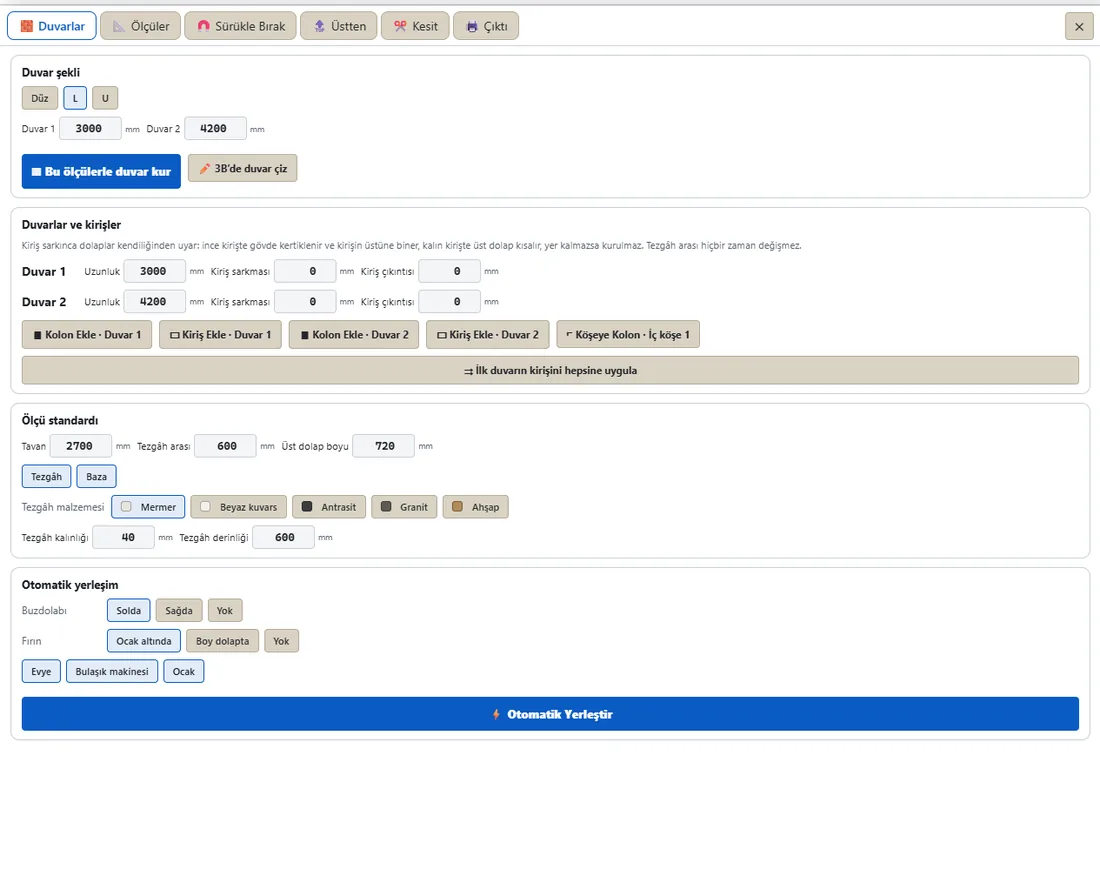
It does, and it's one of the most practical benefits of being a desktop program. Many panels have a "⧉ Detach" button in their title bar: the Module Library, Shelf Settings, Workshop Standards, Help, the cut list / cutting plan, the Drag & Drop / kitchen plan window and the kitchen wizard can move into a separate desktop window. With a second monitor connected, the window opens in the middle of that screen; with one monitor, it goes to the right edge of the main screen. Position and size are remembered for each panel.
In practice you work like this: 3D kitchen on the main screen, Drag & Drop on the second. The drag-and-drop modules there are ready cabinets you pick from the library and drop on a wall; click a module in the palette and it's added to the active wall. Changes made in the detached window go to the main window and can be undone with Ctrl+Z. Windows can be resized by dragging their edges.
Do I need a separate program to render?
No. The render engine is inside the program. Press Render at the top: no settings, no export, no second program. The engine computes the scene and removes the noise, and you get an image ready for the customer. The time varies with your graphics card. Four studios, HDRI and lighting presets, room renders and dimensioned drawings are in the same place.
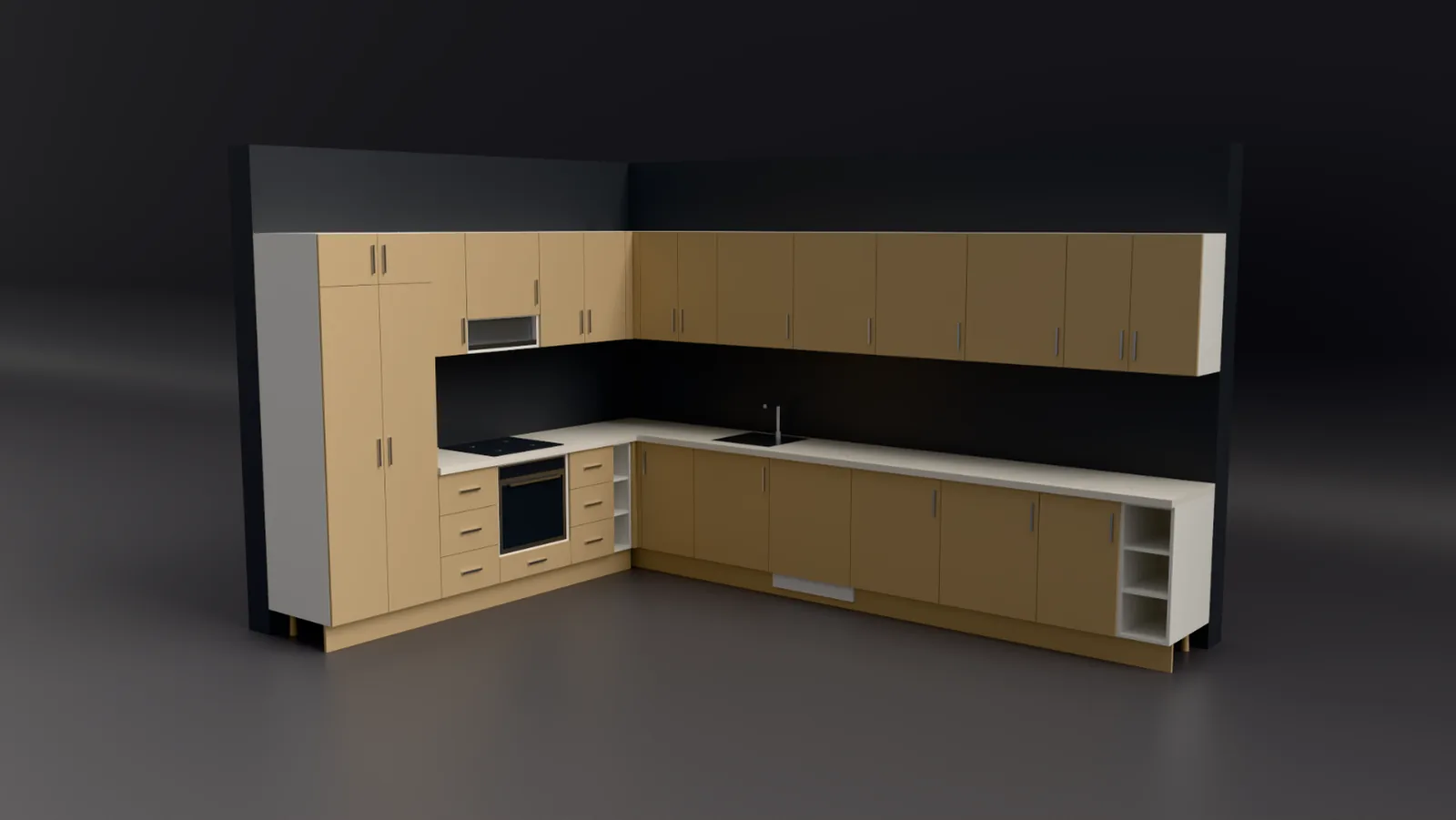
That pays off when you're sitting with a customer. You browse door styles, 386 door designs including slab, framed, horizontal groove and vertical batten, and the chosen door is built onto each cabinet at its own size. Pick the handle type, hole spacing and finish in the handle window. A finish change, meaning a new colour or texture on the carcass and doors, shows up in 3D right away. Then one click to render, and a PDF quote from the same project.
From design to CNC in one window
The real gain of being a desktop program is that design and production sit in the same place. Fast cabinet design here doesn't just mean drawing quickly; it means nobody copies dimensions by hand from paper to a list. That's the flow behind "from design to a CNC cutting file in 15 minutes" on our site, and it's why shops see the program as a time-saving cabinet design tool.
For kitchens, kitchen cabinetry design starts with a five-question wizard: shape, columns / beams / doors, dimensions, appliances and plumbing, finishing touches. It's smart kitchen planning, where "smart" means the cabinets place themselves around the plumbing, the door swing and the columns. The sink goes to the drain, the hob to the gas line; if a column touches a carcass, the carcass is notched in place. The wizard's live drawing updates as soon as a wall or column dimension changes, which is what we call dynamic kitchen design.
The dimensions are entirely in your hands: each panel is built from parametric dimensions, so the millimetre value you type is the part itself and related parts are calculated from it. Production Settings works like a dynamic settings page: you set how edge banding is deducted, your hole system, how the back is fitted and your sheet size once, and the outputs follow those settings. One click switches to a preset, and you can see how many of your settings differ from the defaults.
On the production side, the program produces an automatic cut list. The cut list has columns for part, quantity, cut size, material and banding; the edge band, the strip that covers a board's cut edge, is listed with its thickness. Grain direction, the way the wood pattern runs, appears on the list and on the label as well. In the cutting plan the program does sheet nesting, arranging parts on the board with the least waste, and draws the automatic sheet layout for it.
The final step is export to CNC: NC programs cut the holes first, then the contour, hinge cups included. This is CabinetWizard's own CNC cutting and machining system: holes are placed automatically based on neighbouring panels, tooling and machine settings come from the Machine Profile, and the generated code is read back and checked. The CNC/DXF output also opens in whatever CAM software your shop uses. For error-free CNC cutting our one recommendation is to prove out the first job on your machine with a test piece. That way CNC cabinetmaking runs from screen to machine in one program, and the program becomes a small cabinet design studio on its own.
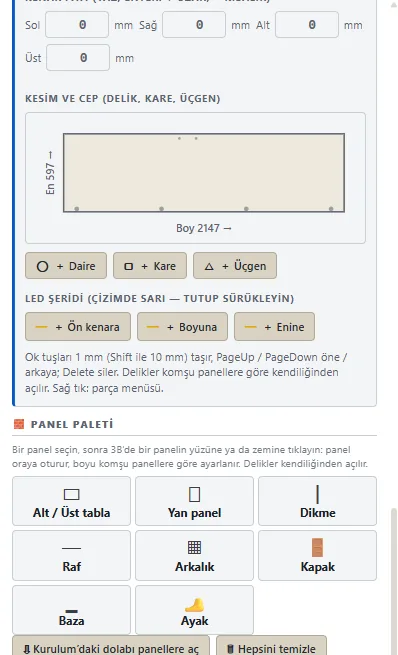
If you get stuck, press F1: Help opens, and the "Take me there" button opens the screen being described. Keyboard shortcuts follow desktop habits: Ctrl+D to duplicate, Ctrl+Z to undo. For more answers, see our post on 14 key questions about CabinetWizard.
Frequently asked questions
Do I need another drawing program installed on my PC?
No. CabinetWizard is a Windows desktop application that runs on its own; no other program is required.
Does it keep working if the internet goes down?
The full version does. You only need internet once, for the first activation. The demo needs internet while it runs.
Do I need to buy a graphics card or a separate engine to render?
No separate engine is needed; the render engine is inside the program. Render time varies with your graphics card.
Where do I get support?
On our WhatsApp line: +90 530 322 93 01. You can also ask about update terms there before you buy.
By Ufuk Şen, developer of CabinetWizard